





- 主营产品:
- 主营产品: SMT/AI OEM配件;SMT/AI原装件:如FEEDER NOZZLE MOTOR DRIVER CONTROL-BOARD SENSOR CYLINDER VALVE CUTTER等;PCB线路板锡膏印刷机配件:网板清洁卷纸,刮刀架/刀片,PCB夹边等;SMT接料胶片;防静电产品;电动工具;仪表仪器;SMT周边设备;SMT焊料:FUJI红胶/锡膏;SMT设备保养用油;SMT清洁用品:无尘纸/无尘布/工业擦试纸;波峰焊/回流焊配件等;更多信息请登录:www.smtsky.com.
- 所在地区:
- 广东 珠海 --
- 联系电话:
- 0756-3899556
- 手机号码:
- 联 系 人:
- 在线联系:
-

- 公司邮箱:
- smt@smtsky.com

- 总人气:3777
- 商铺人气:1360
- 产品人气:2406
- 资讯人气:11
产品详细
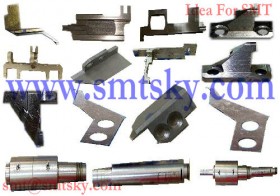
龙健供应:PCB Printer Part PCB印刷机配件
- 型号:
- 价格:
- 最小起订量:0
- 供货总量:0
- 产品介绍
| . The screen returns to the main menu. | ||||
| 1D3C-EPt-EdMrd-004 | ||||
| 1E3C-E-PMB01-A02-00 Page 1-25 1.5 Creating the Production Data | ||||
| 1.5.6 Print Conditions Data | ||||
| 1. About the print conditions data | ||||
| 1. Squeegee | ||||
| A) Operation mode Choose a one-way print operation (Single) or a to-and-fro print operation (Double). | ||||
| B) Priority after printing Set which should move first after printing; lift, squeegees or both together. | ||||
| Lift : The squeegees are fixed and the mask is snapped off while the squeegees are | ||||
| down. After that, the squeegees rise up. | ||||
| Email:smt@smtsky.com,Website:www.smtsky.com | Email:smt@smtsky.com,Website:www.smtsky.com | |||
| Squeegee : After the squeegees have been raised, the mask is snapped off. | ||||
| Together : Raising the squeegees and snap-off start simultaneously. When this mode is | ||||
| Supports : set, the snap-off speed switching is fixed to the uniform velocity mode. A mask is clamped with a lift positioned at the print height, and only supports are | ||||
| used in snap-off. At this time, a board needs to be vacuumed by the vacuum | ||||
| pump. | ||||
| C) Print speed D) Printing pressure E) Length F) Type G) Angle | ||||
| . For C to G, input each data according to the conditions such as solder paste type, board size, or mask data. | ||||
| H) Printing pressure teaching data selection Pressing this switch displays the |
||||
| Page 1-26 1E3C-E-PMB01-A02-00 1.5 Creating the Production Data | ||||
| . Printing pressure teaching data list This screen lists the data (lengths and types) of the squeegees that have undergone the printing pressure teaching. | ||||
| Email:smt@smtsky.com,Website:www.smtsky.com | Email:smt@smtsky.com,Website:www.smtsky.com | |||
| When squeegees are changed, the actual printing pressure becomes different from the set value | ||||
| owing to the change in the weight of the materials. Therefore, be sure to perform the printing | ||||
| pressure teaching before production. | ||||
| ( | ||||
| Operations Manual) | ||||
| However, once the printing pressure teaching is carried out, the data of the squeegees that have | ||||
| undergone the printing pressure teaching are registered in |
||||
| pressure teaching data. | ||||
| After that, from the screen, select the squeegee to be used. | ||||
| . | ||||
| Email:smt@smtsky.com,Website:www.smtsky.com | Email:smt@smtsky.com,Website:www.smtsky.com | |||
| The date on which the printing pressure teaching was carried out is displayed. | ||||
| . | ||||
| The squeegees that are different in materials can be registered even if they are the same in length and type. (E.g.: Urethane squeegee, metal squeegee, etc.) | ||||
| . | ||||
| To distinguish the squeegees that are different in materials, a comment is displayed below a date. | ||||
| A comment can be entered when the printing pressure teaching is complete. ( | ||||
| Operations Manual) | ||||
| . Pressing the desired squeegee No. c reflects its length and type on the print conditions data. | ||||
| 1E3C-E-PMB01-A02-00 Page 1-27 1.5 Creating the Production Data | ||||
| . How to correct a comment | ||||
| Email:smt@smtsky.com,Website:www.smtsky.com | Email:smt@smtsky.com,Website:www.smtsky.com | |||
| . | ||||
| When [Comment correction mode] is pressed, its color changes to blue. | ||||
| . | ||||
| Pressing a squeegee No. displays the comment input screen. | ||||
| . | ||||
| A comment should be entered within eight characters. | ||||
| Page 1-28 1E3C-J-PMB01-A02-00 1.5 Creating the Production Data | ||||
| 2. Printing range Input the print-operation range for squeegees. If nothing has been input, the board is printed from end to end. When the printing area is limited to a portion of the board, inputting this value adjusts the range and can improve the tact time. When .30 is input | ||||
| 193C-043E | ||||
| 3. Lift | ||||
| Email:smt@smtsky.com,Website:www.smtsky.com | Email:smt@smtsky.com,Website:www.smtsky.com | |||
| A) Clearance It is used to adjust the clearance between mask and board. When “0” is input, there will be no clearance. When performing the minus-contact printing that our company recommends, input the value “.0.5.” | ||||
| B) Lowering speed It is used to adjust the snap-off speed required for stable snap-off. | ||||
| C) Lowering stroke It is used to adjust the snap-off distance required for stable snap-off. | ||||
| D) Snap-off speed switching Choose the lowering speed from among the following five modes. High-speed multiple snap-off is a sophisticated snap-off operation evolved from an accelerative snap-off so that the snap-off performance will be improved drawing on various kinds of solder characteristics. A favorable snap-off performance can be obtained and a cycle time can be reduced. | ||||
| Uniform velocity : The support blocks lower the lowering-stroke distance at a uniform | ||||
| velocity. | ||||
| Acceleration : The speed of support blocks accelerates slowly, and eventually it | ||||
| reaches the lowering speed. | ||||
| Acceleration High : An accelerative snap-off is carried out at higher speed. | ||||
| High-speed multiple : The speed of support blocks accelerates to the one that is faster than | ||||
| Email:smt@smtsky.com,Website:www.smtsky.com | Email:smt@smtsky.com,Website:www.smtsky.com | |||
| (Recommended) the lowering speed, and eventually it reaches the lowering speed. | ||||
| Multiple : The speed of support blocks accelerates slowly, and eventually it | ||||
| reaches the lowering speed. | ||||
| (If the snap-off performance is still bad even in the acceleration mode, | ||||
| choose the multiple mode. In this mode, however, the cycle time | ||||
| becomes longer than the one in the acceleration mode.) | ||||
| . If the snap-off performance is bad due to such as a narrow pitch, choose the acceleration mode. In this mode, however, a cycle time becomes longer compared with the other snap-off. | ||||
| Explanation | ||||
| c | ||||
| Uniform-velocity mode (Input value) | ||||
| Email:smt@smtsky.com,Website:www.smtsky.com | Email:smt@smtsky.com,Website:www.smtsky.com | |||
| d | ||||
| Acceleration (Acceleration High) mode (Input value) | ||||
| e | ||||
| High-speed multiple mode (Input value) Lowering speed | ||||
| g | ||||
| Lowering stroke (Input value) | ||||
| 1E3C-E-PMB01-A02-00 Page 1-29 1.5 Creating the Production Data | ||||
| 4. Speed changing mode This is used when solder-filling amount needs to be controlled during printing, such as in the through hole printing or in the fine-pitch printing. Pressing [Speed change] highlights it in blue, and then [Set], which is located in the right of that, becomes available (indicated in black). Pressing [Set] switches to the |
||||
| . Setting of the print speed changing mode | ||||
| Description | ||||
| Email:smt@smtsky.com,Website:www.smtsky.com | Email:smt@smtsky.com,Website:www.smtsky.com | |||
| 1 ‘Zone’ Specify whether to use each zone (Zone 1 to Zone 3). Press a zone switch to use. In using the zone, its switch is highlighted in blue. . Zone: Divided printing range | ||||
| 2 ‘Position’ Set the range of each zone. Regard the front end face of board as 0 mm. For each zone, you can choose from 0 mm up to board width; however, if zones are interfered with each other, a data check error occurs. If the zone positions are set as follows, a data check error occurs. cOne zone is including another. dOne zone is overlapping another. Zone 2 Zone 2 Zone 1 . Overlapped range Zone 1 If the printing-range offset in the print conditions data has been set, note that the setting range becomes narrow according to the setting of the printing-range offset value. | ||||
| 3 ‘Speed’ Set the print speed in the range of each zone. The setting range of speed is 5.0 mm/s to 400.0 mm/s. For the outside of zone, note that printing is carried out at the print speed set in the print conditions data. | ||||
| 4 ‘Prd data PCB W’ This displays the board width that is set in the board data in data modification menu. The data cannot be modified. | ||||
| 5 ‘A speed except for the zone.’ This displays the print speed (F→R, R→F) that is set in the print conditions data. The data cannot be modified. | ||||
| Page 1-30 1E3C-E-PMB01-A02-00 1.5 Creating the Production Data | ||||
| 2. Editing the print conditions data | ||||
| 1. Click [PrintCondition] in the main menu. | ||||
| . The |
||||
| 2 | ||||
| Email:smt@smtsky.com,Website:www.smtsky.com | Email:smt@smtsky.com,Website:www.smtsky.com | |||
| Set the data about the squeegees. | ||||
| 3 | ||||
| Set the printing range. | ||||
| 4 | ||||
| Set the data about the lift. | ||||
| 5 | ||||
| Click [Close]. | ||||
| . The screen returns to the main menu. | ||||
| 1E3C-E-PMB01-A02-00 Page 1-31 1.5 Creating the Production Data | ||||
| 1.5.7 Cleaning Data | ||||
| Email:smt@smtsky.com,Website:www.smtsky.com | Email:smt@smtsky.com,Website:www.smtsky.com | |||
| 1D3C-EPt-EdCd-001 | ||||
| 1. About the cleaning data | ||||
| 1 | ||||
| Operation mode Choose one-round or two-round for the periodic cleaning method. | ||||
| 2 | ||||
| Cleaning operation Choose whether or not to clean the board-contacting side of the mask. | ||||
| 3 | ||||
| Interval Set the board printing count that shows the interval of cleaning operation. | ||||
| 4 | ||||
| Cleaning during a wait of process Choose whether or not to perform the cleaning operation during waiting time, such as while waiting for the next process. | ||||
| Email:smt@smtsky.com,Website:www.smtsky.com | Email:smt@smtsky.com,Website:www.smtsky.com | |||
| 5 | ||||
| Waiting time Input the waiting time to be elapsed until the cleaning-during-a-wait-of-process starts. | ||||
| 6 | ||||
| Speed Set the speed of the cleaning operation. | ||||
| 7 | ||||
| Mode Choose a cleaning mode from either the wet or dry process. | ||||
| . The wet process must be used exclusively for removing the flux of solder on the mask. The wet process is not available for the backward-cleaning operation. | ||||
| 8. Suction Choose whether or not to enable the suction in cleaning operation, which prevents the mask apertures from being clogged with solder. | ||||
| . However, when the wet process is chosen, the suction function cannot be performed. | ||||
| 9. Operation Choose whether or not to enable the cleaning operation for forward and backward each. | ||||
| Email:smt@smtsky.com,Website:www.smtsky.com | Email:smt@smtsky.com,Website:www.smtsky.com | |||
| Page 1-32 1E3C-E-PMB01-A02-00 | ||||
| . Concepts regarding the mask cleaning | ||||
| 1.5 Creating the Production Data | ||||
| 1 Forward Dry Removes solder balls and flux. | ||||
| Backward Dry | ||||
| 2 Forward Wet Removes the thin-film-like flux residues. | ||||
| Backward Dry Removes remaining solvent. | ||||
| .Solder paste = Solder balls + Flux | ||||
| Dry cleaning: Removes solder balls and flux (from the apertures and the back of mask). Wet cleaning: Removes the thin-film-like flux residues (from the back of mask). | ||||
| NOTICE When using the wet cleaning, you are recommended to set it for the “Forward” motion of the second cleaning in two-round cleaning mode. If the wet cleaning is used in one-round cleaning mode, the cleaning performance may be insufficient depending on the type of solder. | ||||
| Email:smt@smtsky.com,Website:www.smtsky.com | Email:smt@smtsky.com,Website:www.smtsky.com | |||
| . Recommended conditions for mask cleaning | ||||
| . Cleaning tact time (For the case where board size is 330 × 250) | ||||
| One-round: About 26 s Two-round: About 50 s | ||||
| Speed mm /s Mode Suction | ||||
| 1 Forward 60 Dry ON | ||||
| Backward 60 Dry ON | ||||
| 2 Forward 30 Wet OFF | ||||
| Backward 60 Dry OFF | ||||
| . If the cleaning performance is not good using the conditions above, reduce the cleaning speed more. | ||||
| 1E3C-E-PMB01-A02-00 Page 1-33 1.5 Creating the Production Data | ||||
| Email:smt@smtsky.com,Website:www.smtsky.com | Email:smt@smtsky.com,Website:www.smtsky.com | |||
| 2. Editing the cleaning data | ||||
| 1. Click [CleaningData]. | ||||
| . The |
||||
| 1D3C-EPt-EdCd-001 | ||||
| 2 | ||||
| Choose an operation mode. | ||||
| 3 | ||||
| Set whether to perform the cleaning during a wait of process and the amount of waiting time. | ||||
| 4 | ||||
| Set the speed, mode, suction, and operation of cleaning. | ||||
| Email:smt@smtsky.com,Website:www.smtsky.com | Email:smt@smtsky.com,Website:www.smtsky.com | |||
| 5 | ||||
| Click [Close]. | ||||
| . The screen returns to the main menu. | ||||
| 1D3C-EPt-EdCd-001 | ||||
| Page 1-34 1E3C-E-PMB01-A02-00 1.5 Creating the Production Data | ||||
| 1.5.8 Print Counter | ||||
| 1. About the print counter | ||||
| 1 | ||||
| Paste count It decreases by one whenever one board is printed in automatic operation. When it has reached “0,” automatic operation stops (Automatic operation - Remaining solder check) or solder is dispensed automatically (option, set in the software switch). Input the number as the paste count. | ||||
| 2 | ||||
| Email:smt@smtsky.com,Website:www.smtsky.com | Email:smt@smtsky.com,Website:www.smtsky.com | |||
| Solder dispense | ||||
| A) Solder depletion check Remaining solder is checked by the chosen method: [Sensor] or [Counter], and solder is dispensed. | ||||
| Sensor (Option) | ||||
| . When it is enabled, the amount of solder is checked by the remaining solder check in F→R printing. If solder is short, it is dispensed automatically (set in the software switch) | ||||
| . When the solder auto-dispensing feature is OFF, [Sensor] is disabled. | ||||
| Counter | ||||
| . When it is enabled, the paste count decreases by one whenever one board is printed in automatic operation. When it has reached “0,” automatic operation stops or solder is dispensed automatically (set in the software switch). | ||||
| . When the solder auto-dispensing feature is OFF, be sure to choose [Counter]. | ||||
| B) Discharging time The solder-dispensing time for a solder auto-dispensing can be set . | ||||
| 1E3C-E-PMB01-A02-00 Page 1-35 | ||||
| Email:smt@smtsky.com,Website:www.smtsky.com | Email:smt@smtsky.com,Website:www.smtsky.com | |||
| 1.5 | ||||
| Creating the Production Data | ||||
| 2 | ||||
| Editing the print counter | ||||
| 1. Click [PrintCounter]. | ||||
| . The |
||||
| 1D3C-EPt-EdPc-001 | ||||
| 2 | ||||
| Set the paste count. | ||||
| 3 | ||||
| Email:smt@smtsky.com,Website:www.smtsky.com | Email:smt@smtsky.com,Website:www.smtsky.com | |||
| Set the method of solder depletion check and the dispensing time. | ||||
| 4 | ||||
| Click [Close]. | ||||
| . The screen returns to the main menu. | ||||
| 1D3C-EPt-EdPc-001 | ||||
| Page 1-36 1E3C-E-PMB01-A02-00 1.5 Creating the Production Data | ||||
| 1.5.9 Library Data | ||||
| 1. About the library data | ||||
| The data that are difficult to adjust (e.g., print conditions data, cleaning data, or print counter) can be saved as a library. Even the operators who are unaccustomed to the machine can easily create the data by loading the prepared data as a set. The library, by default, has 69 patterns by solder type and 4 patterns by print accuracy. In addition, it is possible to add user-created library data. | ||||
| 1D3C-EPt-EdPd-001 | ||||
| Email:smt@smtsky.com,Website:www.smtsky.com | Email:smt@smtsky.com,Website:www.smtsky.com | |||
| 1 | ||||
| [Return to LibData] The |
||||
| 2 | ||||
| [Reflect to LibData] | ||||
| The edited data are saved as library data. | ||||
| 1E3C-E-PMB01-A02-00 Page 1-37 | ||||
| 1.5 | ||||
| Creating the Production Data | ||||
| 2 | ||||
| Returning the print conditions data to the library data | ||||
| Email:smt@smtsky.com,Website:www.smtsky.com | Email:smt@smtsky.com,Website:www.smtsky.com | |||
| 1. Click [Return to LibData]. | ||||
| . The |
||||
| 1D3C-EPt-EdPd-001 | ||||
| 2. Choose the name of the pattern library to load. | ||||
| 1D3C-EPt-EdLb-004 | ||||
| 3. Click [OK]. | ||||
| . Check that the loaded data name appears in the ‘PatternLibrary’ and the ‘Reference’ field. | ||||
| 1D3C-EPt-EdLb-005 | ||||
| Page 1-38 1E3C-E-PMB01-A02-00 1.5 Creating the Production Data | ||||
| 3. Reflecting the print conditions data onto the library data | ||||
| Email:smt@smtsky.com,Website:www.smtsky.com | Email:smt@smtsky.com,Website:www.smtsky.com | |||
| 1. Click [Reflect to LibData]. | ||||
| . The |
||||
| 1D3C-EPt-EdPd-001 | ||||
| 2 | ||||
| Enter the pattern library name. | ||||
| 3 | ||||
| Click [OK]. | ||||
| . The data are registered in the pattern library. | ||||
| 1E3C-E-PMB01-A02-00 Page 1-39 1.5 Creating the Production Data | ||||
| 1.5.10 Print Position Data | ||||
| Email:smt@smtsky.com,Website:www.smtsky.com | Email:smt@smtsky.com,Website:www.smtsky.com | |||